
How uFeed works
Choose topics to keep, blacklist words or phrases, or use both. This free browser extension gently blurs matching posts; every post stays right where it is.
- 1
Choose what to keep or block
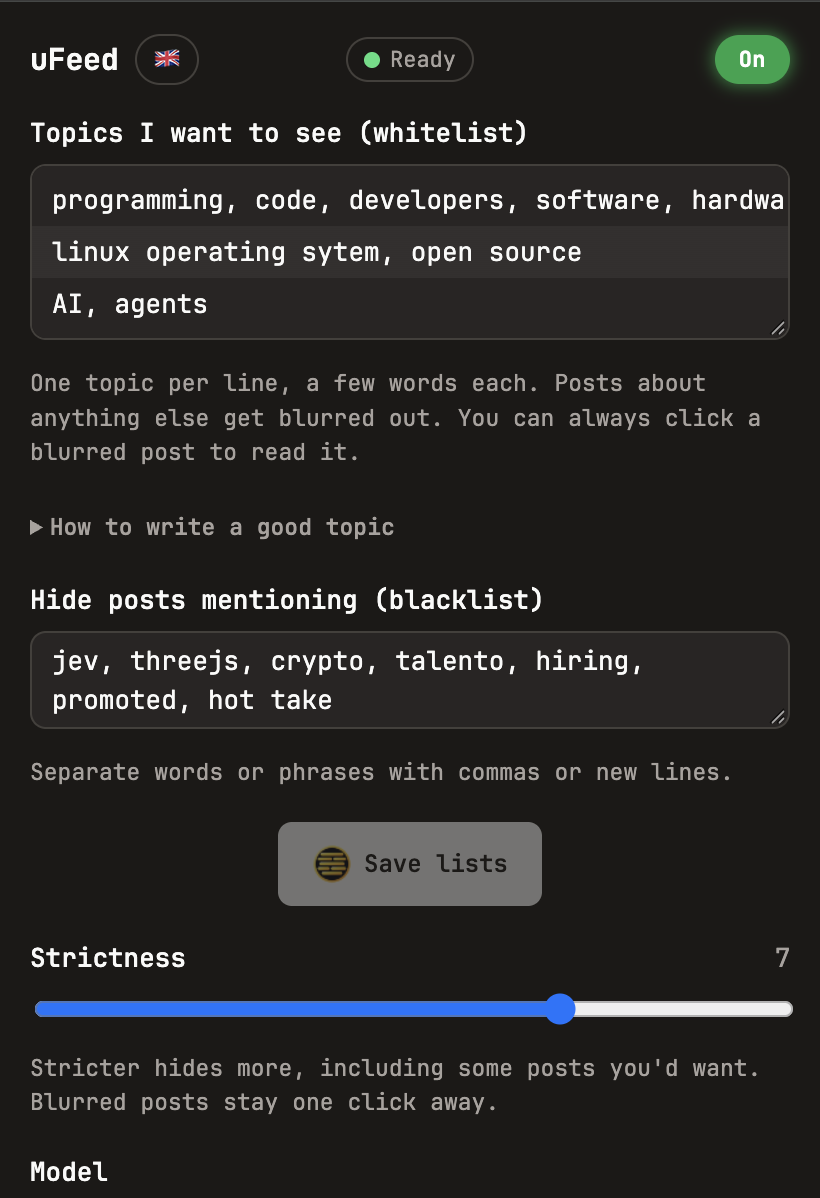
Open the uFeed popup and choose what to filter. For topic filtering, write one subject per line as a short phrase of two to five words. Use words people use in posts—for example, “software engineering” instead of “tech.” Skip full sentences; commas are optional. Or use the keyword blacklist on its own to blur posts containing the words or phrases you list.
- 2
Keep scrolling
On X, LinkedIn, or Reddit, uFeed checks each post against your topics or blacklist. Topic checks happen in your browser; blacklist matches are checked directly against the words and phrases you listed.
- 3
See more or less of what you want
When you use topics, posts outside them are gently blurred. A blacklist also blurs posts with matching words or phrases, even when they fit your topics. With only a blacklist, unmatched posts stay visible. Tap a blurred post—or focus it and press Enter—to see it whenever you want.
- 4
Make it your own
Adjust strictness and peek at close calls. Rate posts to help uFeed learn what you want to see more or less of; ratings stay on your device.
🔒 Made to feel simple and stay private
There is no sign-up, account, or uFeed server. The model is downloaded once and cached by your browser. Your topics and the posts you read are not sent to us. uFeed is free and open source, so you can look through the project yourself.
🌍 Choose the language that suits you
The default model works in English. If your feeds are in other languages, you can choose the optional multilingual model in the popup. It needs a larger one-time download; your topics and settings stay the same.
A helpful nudge, not a perfect judge
uFeed recognises subjects, not quality. It can blur something you would have liked, or leave something you would rather skip. You are always one click away from the full feed, and if uFeed stops working, posts remain visible.